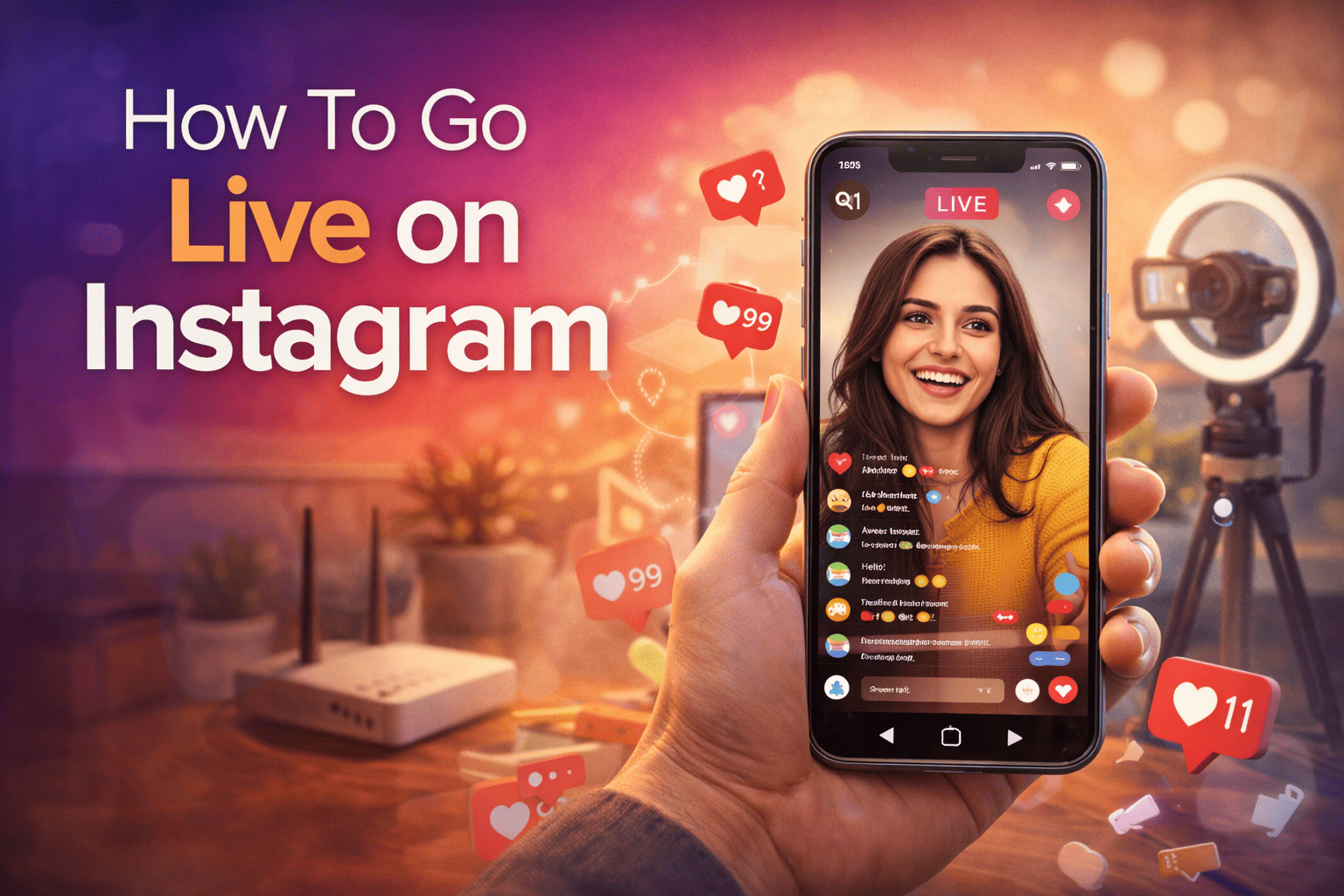
How To Go Live on Instagram
On Instagram, users streaming video for their followers in real time with Live. This feature is commonly used for making announcements, Q&A sessions, tutorials, ‘behind the scene’ updates, and interactive discussions. The option is available within Instagram stories and can be accessed directly through the mobile application.
This guide explains the concept of Instagram Live and describes how it functions and the process of going live, including a few Practical suggestions for the first-time user.
What Is Instagram Live?
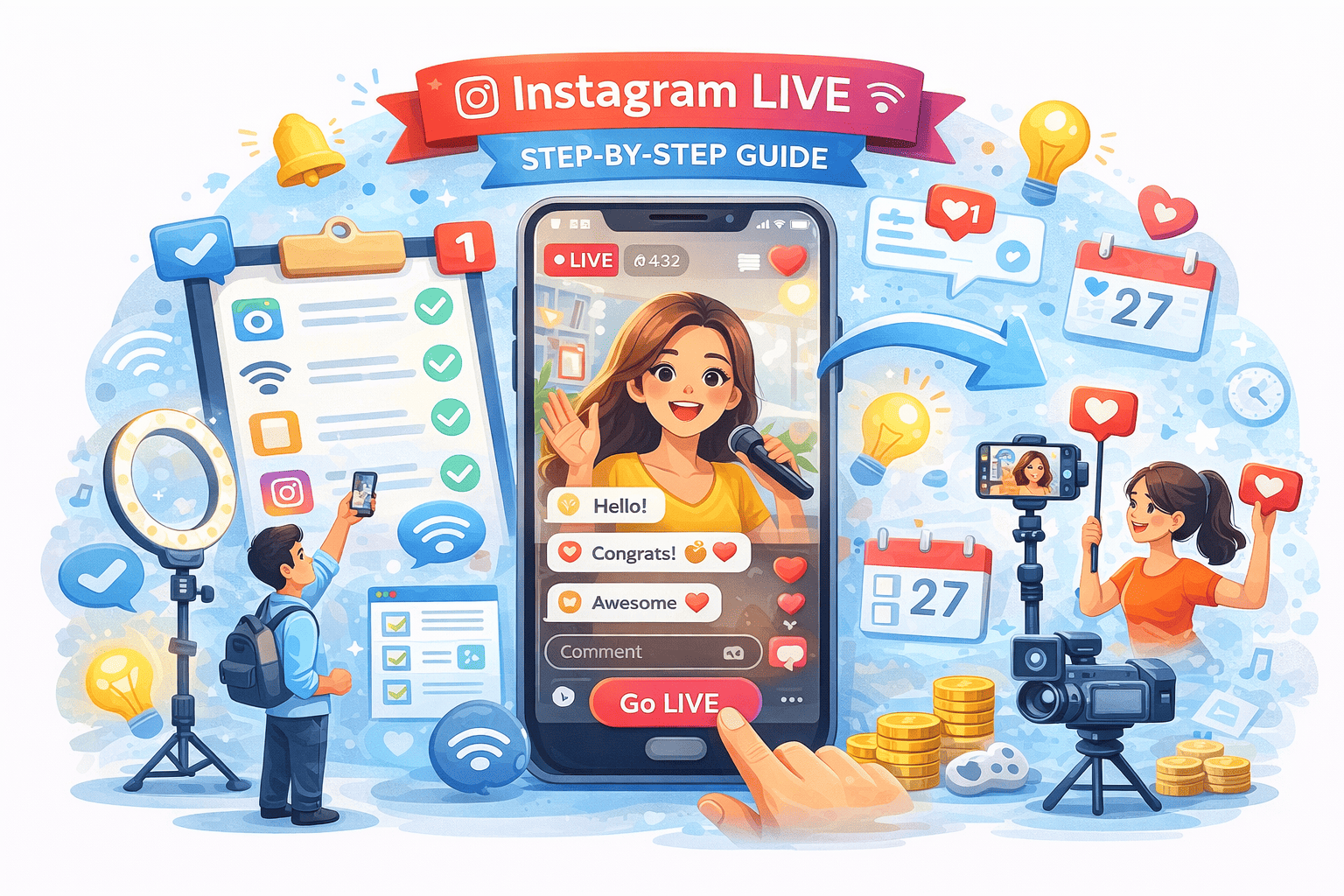
Instagram Live is a streaming feature that allows you to stream live video with your followers. As soon as you create a live session, your followers get a notification, and the video is prominently placed in the first position in the Stories section when it is streaming.
Major features related to Instagram Live are:
- Live communication by commenting and reacting.
- There is no enforced time limit, as long as the platform rules are followed.
- The option to save, share, or discard the live video once it concludes.
- Available on the Instagram mobile application only.
Instagram Live is designed for real-time, authentic experiences. It is a place for raw, unfiltered conversation rather than polished or edited content.
Requirements Before Going Live on Instagram
There are a few requirements that must be fulfilled before commencing a live session to prevent interruptions and technical problems.
- An active Instagram account.
- The most recent/ updated version of the Instagram mobile app.
- A reliable internet connection (Wi-Fi or strong mobile data signal).
- A phone that has an operational camera and a microphone.
It cannot be broadcast using Instagram from desktop browsers.
Step-by-step Guide to Go Live on Instagram.
It is easy to start an Instagram Live session. The following steps apply to both Android and iOS mobile phones.
Step 1: Open the Instagram App
Go to your account and make sure that you are on the home feed.
Step 2: Access the Stories Camera.
Tap the + button at the top of the screen or swipe towards the right of the home feed to access the Stories camera.
Step 3: Select “Live”
On the bottom of the screen, scroll towards the options (Post, Story, Reel) and choose Live.
Step 4: Set Up Your Live Session
Before going live, you can:
- Add a live title for context
- Select the audience (public or practice mode, as applicable)
- Check the frame and lighting of the camera.
Step 5: Go Live
Tap the Go Live button. Instagram will also do a brief check-up of the connection before broadcasting the session.
Step 6: Converse in the Live Event.
Once live, you can:
- Read and respond to comments
- Pin comments
- You can invite other users to your live session.
- Turn comments on or off
Step 7: End the Live
When you are done, tap End on the top-right. Then you have the choices to either share, save or discard the video.
Instagram Live Best Practices
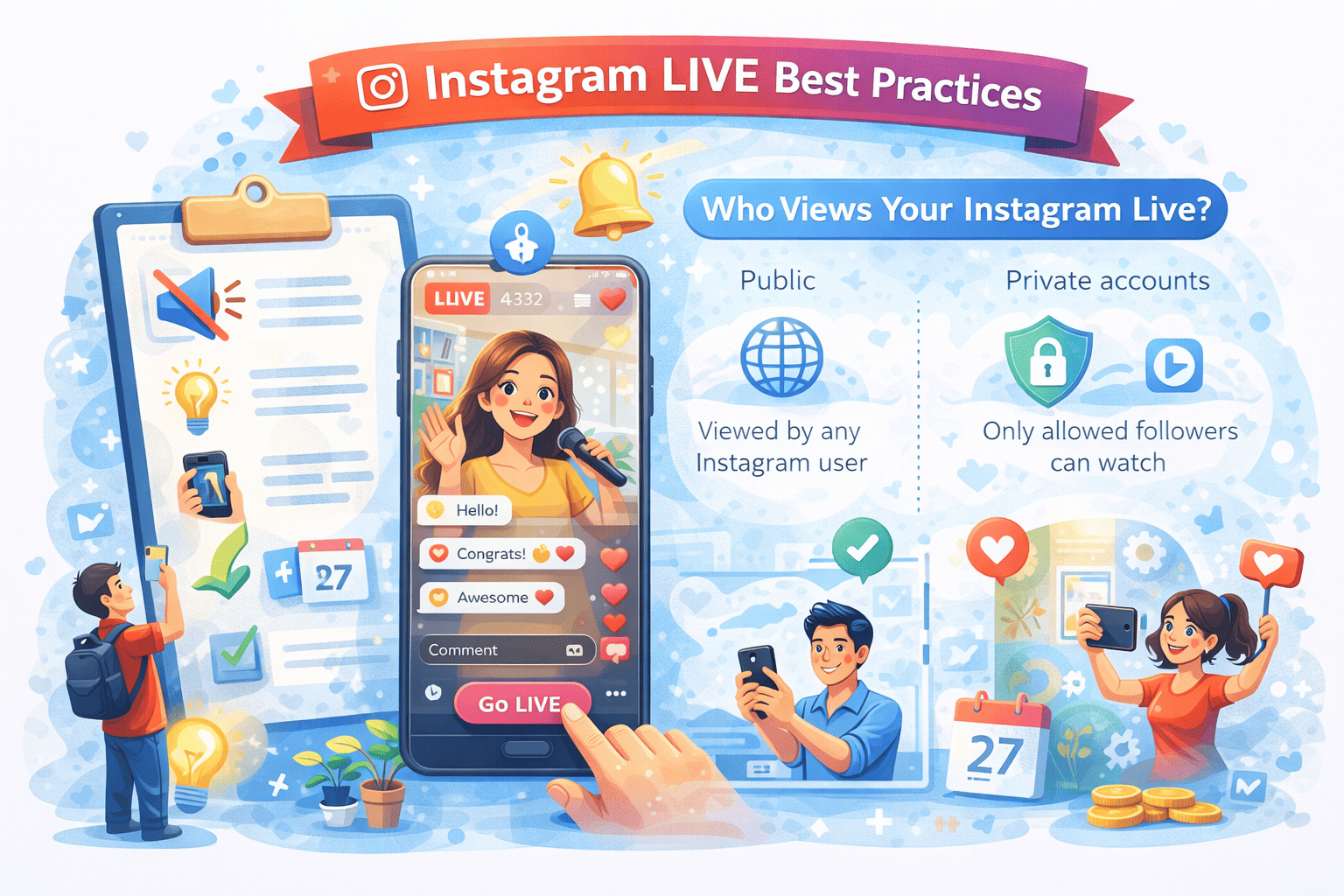
While Instagram Live doesn’t professional production, a little planning can make your stream clearer and enjoyable for viewers.
Consider the following:
- Select the area that is quiet with minimum background noise.
- Make sure that there is enough light to make the video clear.
- Hold the phone firmly to prevent shaking.
- Inform the followers before going live via a post or Story.
These measures will ensure that the session is smooth.
Who Views Your Instagram Live?
Visibility depends on your privacy settings and account type
- Public accounts: The live can be viewed by any Instagram user.
- Private accounts: The live can only be seen by followers who have been allowed.
Instagram does not limit the use of Live based on the number of followers, as long as a user follows the platform’s regulations.
Using Instagram Live as a Component of a Larger Content Strategy
Instagram Live is effective compared to other types of content like posts, Stories, and Reels. Live should be used to facilitate announcements, explanations, and interaction with the people, whereas other features accommodate discovery and long-term visibility.
Live video is largely an engagement tool and not a discovery tool. The number of viewers may differ based on the time, activity of the audience and account reach.
About Engagement Support Services
Engagement Support Services is a third-party service for both individuals and business users. Usually, people seek out third-party support services to gain assistance on social media for early visibility. As an example, FBPostLikes offers Instagram likes services, the purpose of which is to only provide the posts with an initial engagement push. These services focus on the gradual patterns of activity and the alignment of engagement.
Key Points to Remember
- Instagram Live is available on mobile only.
- An internet connection should be fast and reliable.
- Live sessions facilitate live interaction.
- The visibility will rely on the account privacy settings.
- Preparation enhances the quality of the session.
Final Thoughts
Going live on Instagram is easy and lets you communicate directly and in real-time with followers. With the knowledge of the feature and advanced preparation of simple technical aspects, users can use Instagram Live without complications.
Instagram Live is an efficient communication tool, not a promotion tool, whether used occasionally or in a routine. The user should prioritize clarity, relevance, and consistency, while also taking into account platform policies and audience preferences.
Frequently Asked Questions (FAQs)
1. Who can go live on Instagram?
The Live feature is available to every Instagram account that is in good Position. No minimum number of followers is necessary as long as the account follow Instagram’s guidelines.
2. Do my followers get notification when I go live on Instagram?
Instagram may notify the followers when a live session is going on, but this is based on their preferences, and prior history to account participation.
3. Is it possible to stream live on an Instagram using a desktop computer?
No, currently, one can only use the mobile application to stream the contents of Instagram Live, but desktop users cannot stream live videos.
4. Can I save my Live video on Instagram when it is over?
Yes, once the live session is over, Instagram gives you the ability to save the video to your phone or send it as replay.
5. Should Instagram Live be used in business accounts?
Instagram Live serves as a platform for providing updates and engaging in discussions for business and creative accounts. It is essential to utilize this feature in alignment with the norms of the platform and the expectations of the audience.