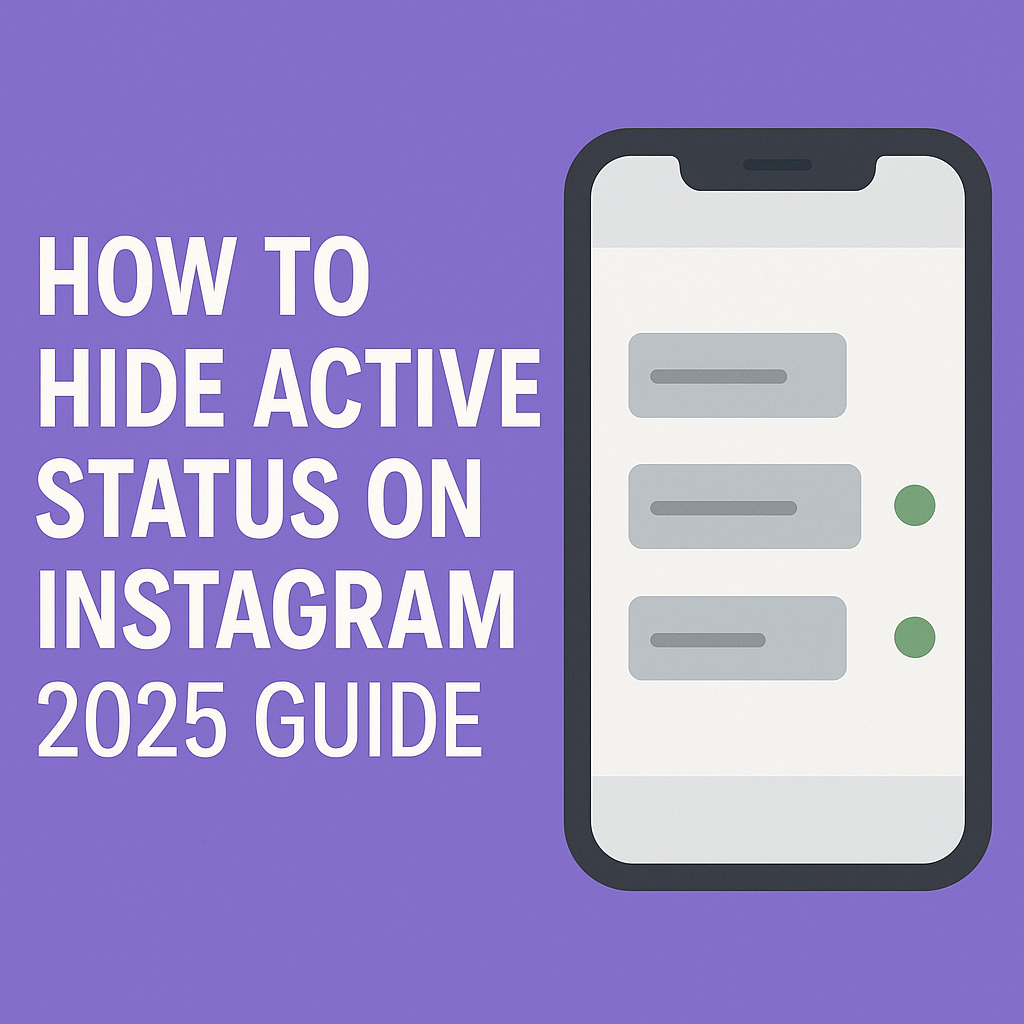
How to Hide Active Status on Instagram 2026 Guide
If you’re finding the process of how to turn off active status on Instagram and you’re not able to do it by yourself. Well, Instagram allows you to turn off your accounts active status by accessing your Instagram settings. Hiding active status helps you to avoid award conversion and immediate replies. Along with this, this feature is ultimately to protect your privacy where you have no pressure to reply at the same time. Furthermore, in this guide we will explore how to turn off active status on Instagram whether you want to turn it off permanently or just for temporary time.
In What Situations do People Prefer to Deactivate Instagram Active Status?
Sometimes being online can bring about extra stress or embarrassment. When you’re not seen as active, you get some space. Here are 4 common scenarios where this can help you maintain your peace, privacy and personal boundaries.
a. When you need to focus without distractions
When you’re busy, studying, or producing content, you can lose focus with constant notifications and the need to respond. When you turn off the active status, it means you are not available, so you can concentrate 100% on important things, without feeling guilty about not reading the messages.
b. When you don’t want unwanted conversations
Often, you just don’t have the energy to converse with some people. You can relax and browse Instagram without having to worry about the reply from your acquaintances or strangers, or even the initiation of a conversation you don’t want to start in the first place.
c. When You’re Taking a Mental Health Break
Social media burnout is a real thing. You can turn off your active status, which lets you scroll, view stories or stay current with friends who are close to you, at your own pace. This little step keeps you happy with your mind and eliminates the need to be constantly “on” and “available.
d. When You’re Active During Odd Hours
If you make an appearance online late in the night or very early in the morning, it could raise questions or concerns. When you don’t reveal your status, you can use the app whenever you like without having to tell curious followers and friends about your unusual schedule.
Steps to How to Turn Off Active Status on Instagram Account
Turning off your active status can be a good decision to get rid of immediate replies to strange people where no one is able to see active status. Along with this, if you’re busy, trying to avoid conversation with someone, or simply don’t have an interest in talking to them and want to take the pressure of a fast reply to someone immediately, hiding your activity status can prove helpful. These easy steps take you to turn off your active status on Instagram.
Step 1:
To turn off your active status on Instagram, first of all you have to open your Instagram account whether you are an Android or iOS user. Now access your “Profile” by clicking your profile picture located at the bottom of the screen.

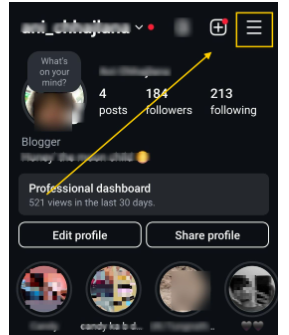
Step 2: When you land on your profile, kindly click on “three horizontal” lines at the top-right corner of your screen.
Step 3:
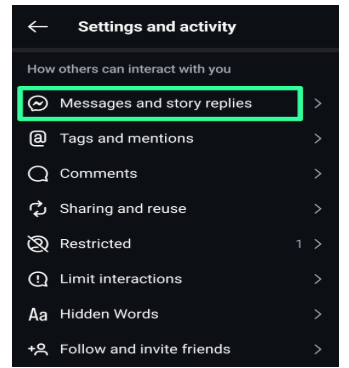
Now in this step, all you have to do is scroll down in the settings and activity page and find “Messages and story replies” which is typically situated in the fourth section with “How others interact with you”. Simply click on that.
Step 4: Find “Show active Status”
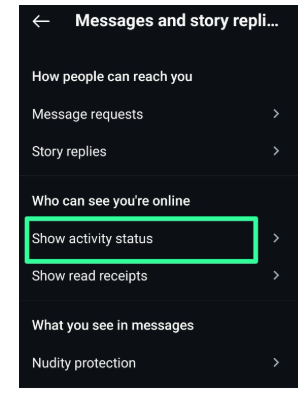
This is the final step to turn off active status on Instagram where first you have to find “Show active Status” simply click on it and turn Off your active status on Instagram.
How to Turn Off Active Status on Instagram in Desktop Device
If you’re using your Instagram in Desktop and want to turn off active status on Instagram in desktop or laptop then you can turn off active status in desktop by following these steps.
Step 1: Open Instagram in Desktop
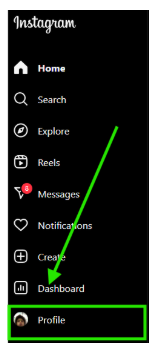
Start with opening your Instagram account on your desktop or laptop and access your profile by clicking on the profile icon at the left down side in your desktop screen.
Step 2: Access Setting option
Now in step when you reach your file find Setting that appears with gear icon, click on it to turn off your active status on Instagram on desktop.
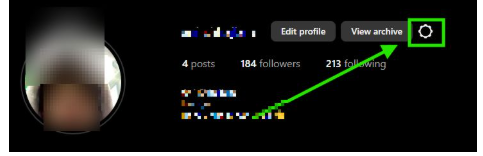
Step 3: Setting and Activity
Now simply click on Setting and Privacy option among all options in the settings page.

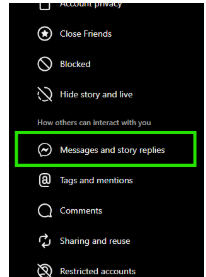
Step 4: Go to Messages and Replies
Now you are on the final step where you have to scroll down in Settings and find “Messages and Replies” simply click on it.
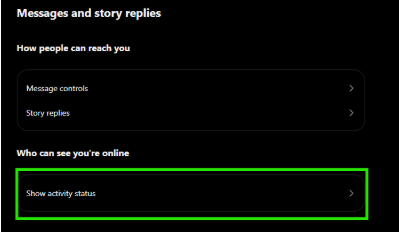
Step 5: Turn Off Active Status
When you click on “Messages and Replace”, on the top right side, the option of “Show Activity Status” will appear. You have to turn off this option from there.
Conclusion
Turning off active status on Instagram is a simple process for mobile devices or desktop as well. Instagram allows users to turn off their active Instagram account by following a few simple steps. This feature helps you to get rid of instant replies to someone and protect your account privacy without showing your accounts active status. Whether you want to hide from everyone or just certain people. This gives you more control over your privacy while using the app. This turning off your active status on Instagram gives you more control over your privacy while using the app.
FAQ:
Q1. How do I turn off Active Status for everyone?
Go to Settings → Messages & Story Replies → Show Activity Status → Toggle OFF. This hides your status from all users.
Q2. Can I disable Active Status for only certain people?
Yes, visit their profile → Tap Following/Message → Hide Active Status. They won’t see when you’re online.
Q3. Will deactivating an active status remove my “Last Seen” from all my contacts?
Yes, with Show Active Status disabled, the “Last Seen” time will completely go away. Even your followers or those you message don’t see when you’ve been last online.
Q4. After I turn off my active status, can I still see active status on others?
No, hiding the active status works both ways. You will also no longer be able to view your followers’ or friends’ online presence or last activity.
Q5. Does deactivating active status take place across devices?
Yes, it syncs the setting to all of your accounts. If you log in on Instagram mobile, tablet, or desktop, and you disable your active status, it will affect all of your logged-in devices.
Q6. Will Instagram let anyone know if I turn my status back on?
No, Instagram does not notify you when you activate or disable your “active” status. All the contacts will simply see the “Last Seen” or active indicator again without any notification.
Q7. Can I hide my active status for certain individuals but not others?
No, you cannot selectively hide your active status for certain connection. The activity status is a global setting and will affect visibility for all connections.