How To Cancel YouTube TV Subscription?
The whole point of streaming services is to provide a bit of flexibility for viewers, yet sometimes managing active services is not as intuitive as users might have hoped for. Whether you’re looking through your monthly expenses or simply don’t need live television anymore, understanding how to end your subscription to YouTube TV is essential.
To help you with that, this guide provides you with a clear explanation of how to cancel YouTube TV across different devices and what happens after cancellation. It also discusses alternative options, such as pausing your membership.
What You Should Know Before Cancelling YouTube TV?
YouTube TV is a monthly subscription service, which means that there are no contracts or fees to cancel the service. When you cancel, you can simply stop future renewals as opposed to ending your access immediately.
Before you proceed with the cancellation of the streaming service, here are a few points that you should keep in mind:
- Your membership remains active until the end of the current payment cycle.
- You can continue watching live channels and recorded content during that time.
- Ending your subscription does not delete your account or preferences.
- YouTube TV does not offer refunds for partial billing periods.
- You can also pause your membership.
How to Cancel YouTube TV on a Web Browser?
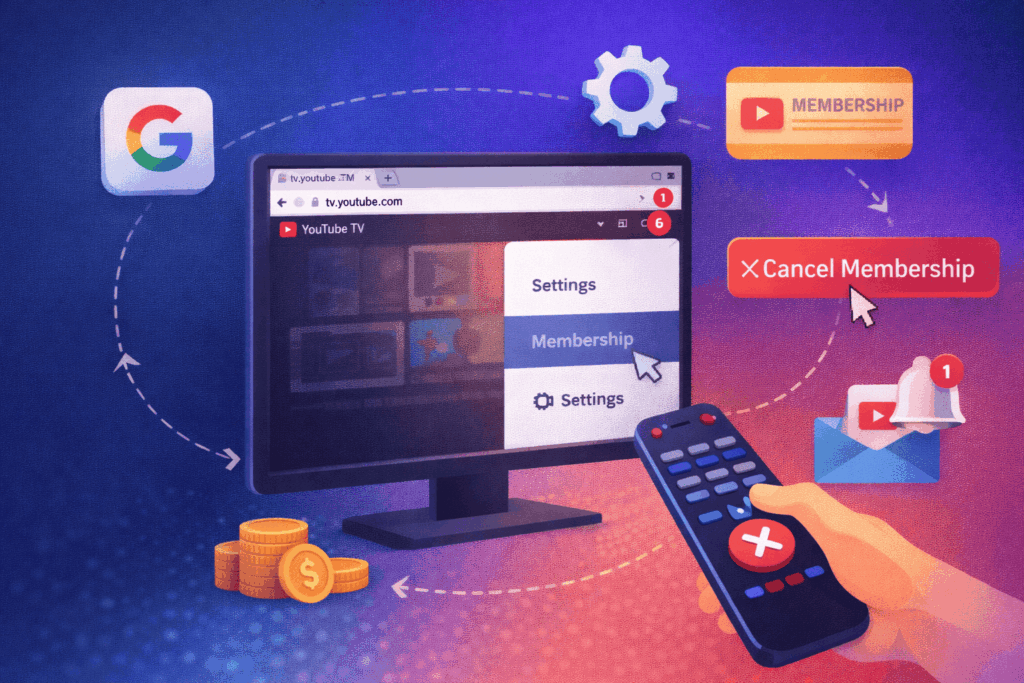
During the cancellation of the streaming service, make sure you have an active internet connection. Once done, follow the process below that is applicable for both mobile and desktop web browsers:
- Visit tv.youtube.com.
- Sign in with a Google account associated with your membership.
- Click your profile icon in the top right corner of your screen.
- Go to Settings in the drop-down menu.
- Go to the Membership page.
- Click on ‘Cancel Membership’.
- Follow the on-screen steps to end the streaming service access.
Upon completion, YouTube TV will show a message and send an email to confirm that membership has been cancelled.
How to Cancel YouTube TV on Mobile Devices?
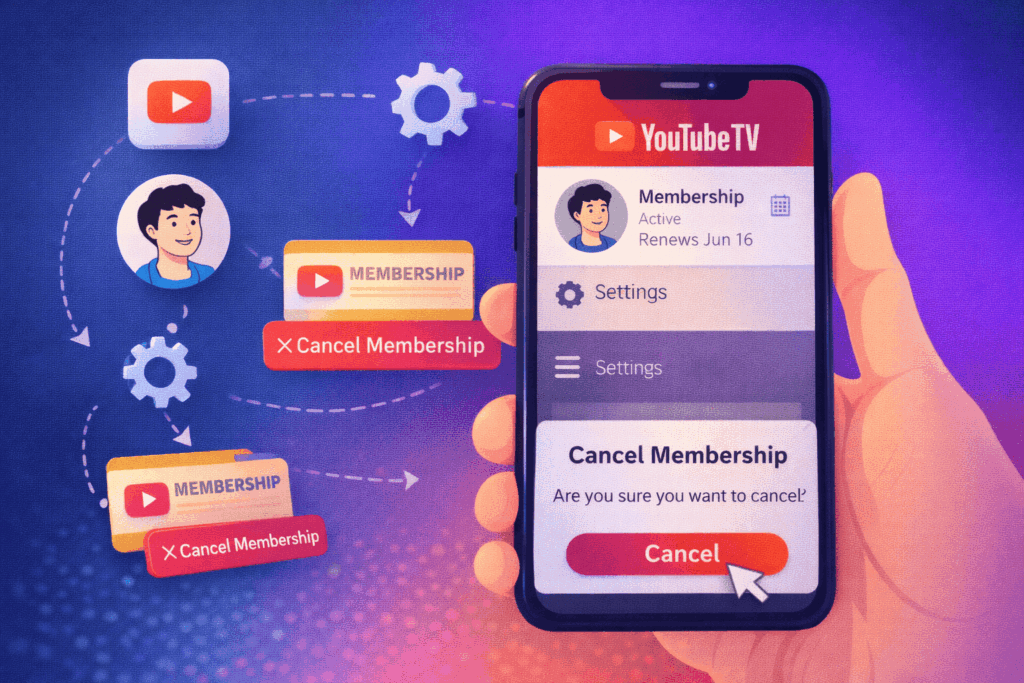
If you manage your membership through an Android device, the YouTube TV app allows direct cancellation. Here’s how you can do that:
- Open the YouTube TV app
- Tap your profile picture
- Select Settings
- Go to Membership
- Tap Cancel membership
- Confirm when prompted
The cancellation takes effect at the end of your payment cycle, just as it does on a web browser.
Cancellation on iPhone or iPad
YouTube TV subscriptions are billed through Google accounts rather than Apple’s App Store. Because of this, ending your membership cannot be completed through iOS subscription settings.
If you’re using an iPhone or iPad, you’ll need to:
- Open a web browser
- Log in to your YouTube TV account
- Cancel through the Membership section
Cancellation of YouTube TV on Smart TVs and Streaming Devices
Many users sign up for YouTube TV using smart TVs or streaming devices, but these platforms are designed only for viewing.
Devices that do not support direct cancellation include:
- Smart TVs
- Roku
- Amazon Fire TV
- Gaming consoles
Even if you initially subscribed to one of these devices, you must cancel using either:
- A web browser, or
- The YouTube TV Android app
A Quick Glance at YouTube TV Subscription Cancellation
While there are multiple ways to cancel the YouTube TV subscription, reviewing each of them assists in following the most suitable way for each platform.
| Platform | Where to Cancel? | Steps |
| Web Browser | tv.youtube.com | Profile → Settings → Membership → Cancel |
| Android App | YouTube TV app | Profile → Settings → Membership |
| iPhone/iPad | Web browser only | Log in and cancel via Membership |
| Smart TV / Streaming Devices | Not supported | Use browser or mobile app |
What Happens After You Cancel?
Cancelling YouTube TV will prevent any further charges, but it won’t immediately cancel your access. Upon the cancellation of the streaming service, you’ll have the following access:
- Complete access until the end of the current billing cycle
- Recordings will be saved until the subscription ends
- No extra charges will be added after the cycle is complete
How to Pause Instead of Cancelling?
If you think you are going to return to YouTube TV in the near future, then going on pause instead of cancelling might be the best option.
With the pause feature:
- You can pause your membership for up to 6 months
- The recording will remain saved on the streaming platform
- Billing is temporarily stopped
- Service automatically resumes when the pause ends
How to Pause Your Membership:
- Go to Settings
- Select Membership
- Choose Pause membership
- Set your preferred pause duration
Billing & Refund
In order to cancel your subscription with YouTube TV, you need to consider a couple of terms to ensure that you do not encounter any problems related to terminating access to the streaming services. These are some of the key terms relating to the payment cycle of YouTube TV.
- No Partial Billing Credits: YouTube TV will not provide any refund where the billing periods have been partially used. This means that in the event that you decide to cancel your membership within a monthly cycle, you will not be compensated for the remaining part of that month.
- Service Issues: YouTube TV may consider issuing a refund in exceptional circumstances, such as technical issues or missing features. You can apply for a refund by sending a request through the official help page.
- Credit Card Refunds: Refund processing for credit cards usually takes 3 to 5 business days. However, it may take up to 10 business days, depending on the issuer of your credit card.
- Third-Party Billing: In case you purchased a YouTube TV subscription via a mobile carrier or an internet provider, it will be managed by your service provider for refunds.
Final Thoughts
The cancellation of YouTube TV can be done by following the right steps. You’ll not have to pay any cancellation charges or lose services until the current billing period ends. An alternative option is the pause options, which allow you to take a break from your subscriptions for up to 6 months. Among them, choosing the right option helps you perform the right action to stop the streaming service.
FAQs
1. Can I restart my YouTube TV service if I had previously cancelled it?
Yes, you can do so at any time simply by using the same Google account to log in again.
2. What happens with my DVR recording upon the cancellation of the streaming service?
As soon as you cancel your YouTube TV subscription, your recorded shows will remain accessible up to the closing of your current billing cycle.
3. Are there any charges if I cancel the YouTube TV service?
There is no cancellation fee by YouTube TV in case you want to cancel the live streaming service.
4. Does cancelling YouTube TV impact my regular YouTube account?
No, it does not, and you can still use your standard YouTube account as usual because cancelling YouTube TV has no effect on your Google account and YouTube usage.
5. Will add-on channels be cancelled automatically?
All additional channels will be cancelled along with the main subscription account.
References